TV Control
Controlling your TV with the S4•R remote
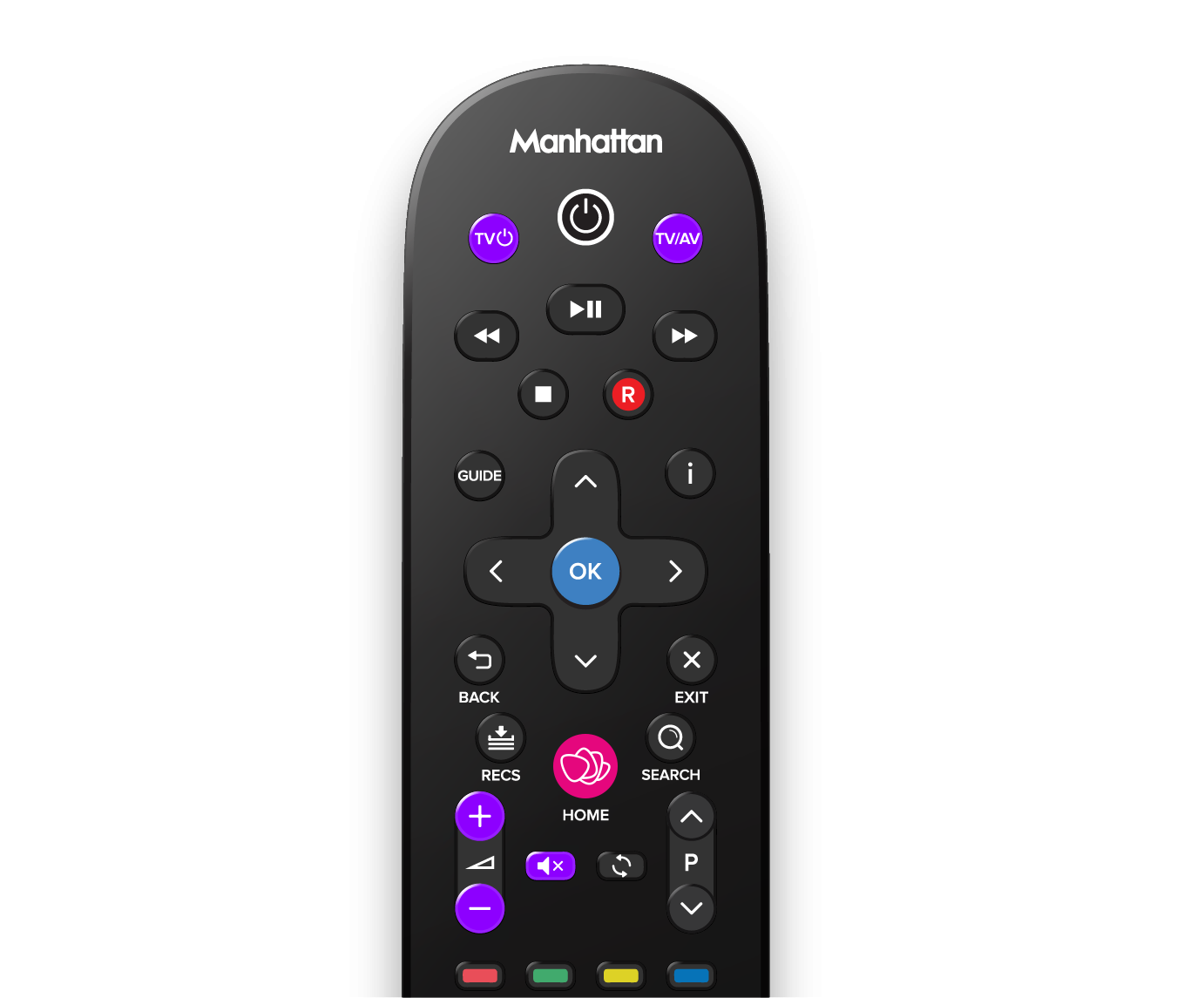
You can teach the five buttons highlighted in purple on the S4•R remote to control your TV:
- TV power
- TV input selection
- Volume +
- Volume –
- Mute
Initially, the Volume and Mute buttons control your S4•R’s sound. However, for the best sound quality and consistent volume across your TV’s sources, you can teach these buttons to control your TV’s volume directly instead.
The and buttons do nothing until you teach them to control these functions on your TV.
Learning Steps
Follow the steps below to teach the remote how to control your TV, or watch the video for a visual guide. Please note, the video is for the T4/T4•R, but the steps are exactly the same for the S4•R.
⚠️ Before Starting
- Set your S4•R’s volume to maximum for correct TV volume after setup.
- Put your S4•R’s in standby to prevent accidental operation during learning.
- Position your S4•R and TV remotes facing each other, a finger-width apart.
1. Press the S/AD and ZOOM buttons on the S4•R remote for 3 seconds to enter learning mode.
→ The S4•R remote’s button will glow blue.
2. Press the button on the S4•R remote you want to teach: Volume +, Volume –, Mute, or .
→ The S4•R remote’s button will start blinking.
3. Press and hold the corresponding button on the TV remote.
→ If successfully learnt, the light from the S4•R remote’s button will turn off for a second, then turn solid blue. → If it fails to be learnt, the light from the S4•R remote’s button will flash 4 times, and you will need to repeat Step 2.
4. Repeat steps 2 and 3 for all the buttons to teach.
5. Press OK on your S4•R remote to exit learning mode.
→ The light from the S4•R remote’s button will turn off.
Test the Buttons
Test each button with your TV. If a button doesn’t work, repeat the steps to teach it again.
Resetting Learned Buttons
To clear all learned buttons and start fresh, press and hold S/AD and for 3 seconds. The button will flash blue once to confirm.
Tips for Success
- Use fresh, non-rechargeable batteries in both remotes – weak or rechargeable batteries can cause learning problems.
- When teaching a button, press and hold the TV remote button until the S4•R remote’s LED becomes solid. If not held long enough, volume controls may require repeated presses instead of a single hold.
- If your TV remote’s infrared transmitter is positioned higher than the S4•R’s, slightly elevate the S4•R remote to align them properly.
Troubleshooting
- Smart TV remotes with Bluetooth capabilities (voice/mouse control) must be in infrared mode to work:
- For LG TVs, please see our guide.
- For other TVs, consult your TV’s user manual for instructions on switching to infrared mode, or contact your TV manufacturer for assistance.
- If you didn’t set your S4•R to full volume before teaching the remote, you may notice no sound or low volume from your S4•R. HD channels may still have sound if you’re using Dolby. To restore the volume to maximum, press: Home → → → → → → .
- Some TVs use non-standard remote signals and may not be compatible with the S4•R remote.