TiVo Accessibility
Your Aero includes accessibility settings at the TiVo system level, giving you control over audio guidance, audio description, and more. These settings apply across the device and, where relevant, sync with Freely.
Accessing Accessibility Settings
There are two ways to reach the accessibility options:
From the Settings menu: Press the Settings button on your remote, then select Accessibility.
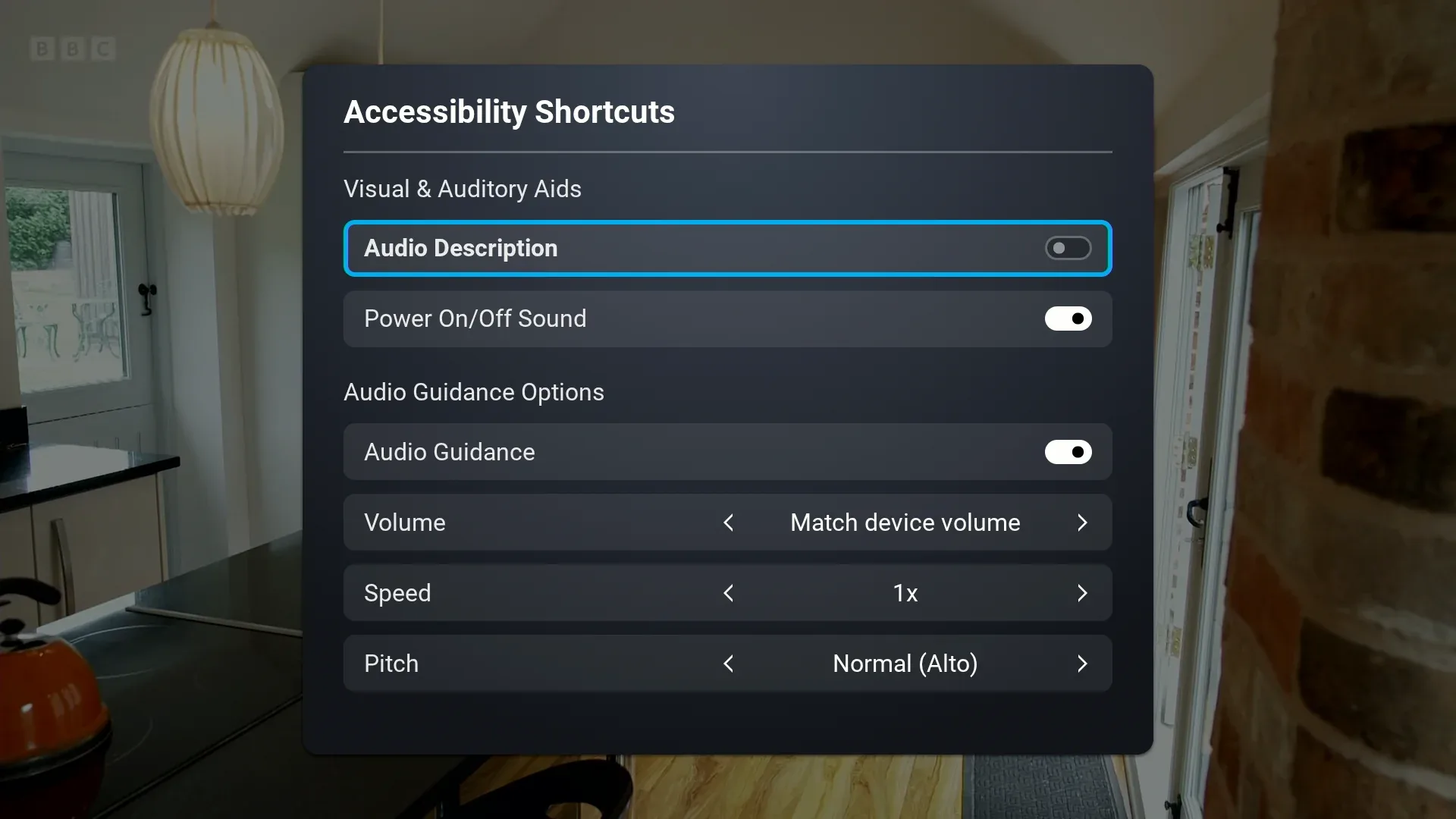
Using the quick shortcut: Hold down the Mute button to open the Accessibility Shortcuts menu. This gives you fast access to toggle settings without navigating through menus.
Available Settings
Audio Description
Turns on spoken narration during programmes that support it, describing visual elements during gaps in dialogue. This setting syncs with Freely – if you turn it on here, it will also be on in Freely, and vice versa.
Audio Guidance
Provides spoken feedback as you navigate menus and screens on your Aero. This helps you move around the interface without relying on the display.
Note: Audio Guidance works on TiVo screens but does not currently work within Freely. For accessible navigation in Freely, see the Accessible TV Guide on Channel 555.
Power On/Off Sound
A short sound plays when your Aero turns on or off, giving you audio confirmation that the device is responding. This is enabled by default but can be turned off if you prefer.
Settings Sync Between Freely and TiVo
The Audio Description setting is linked between Freely and TiVo. When you change it in one place, the change applies everywhere on your Aero. This means you only need to set your preference once, and it’ll be remembered across both environments.
Other settings like High Contrast in Freely and Audio Guidance in TiVo are independent, as they apply to different parts of the system.