Navigating Freely
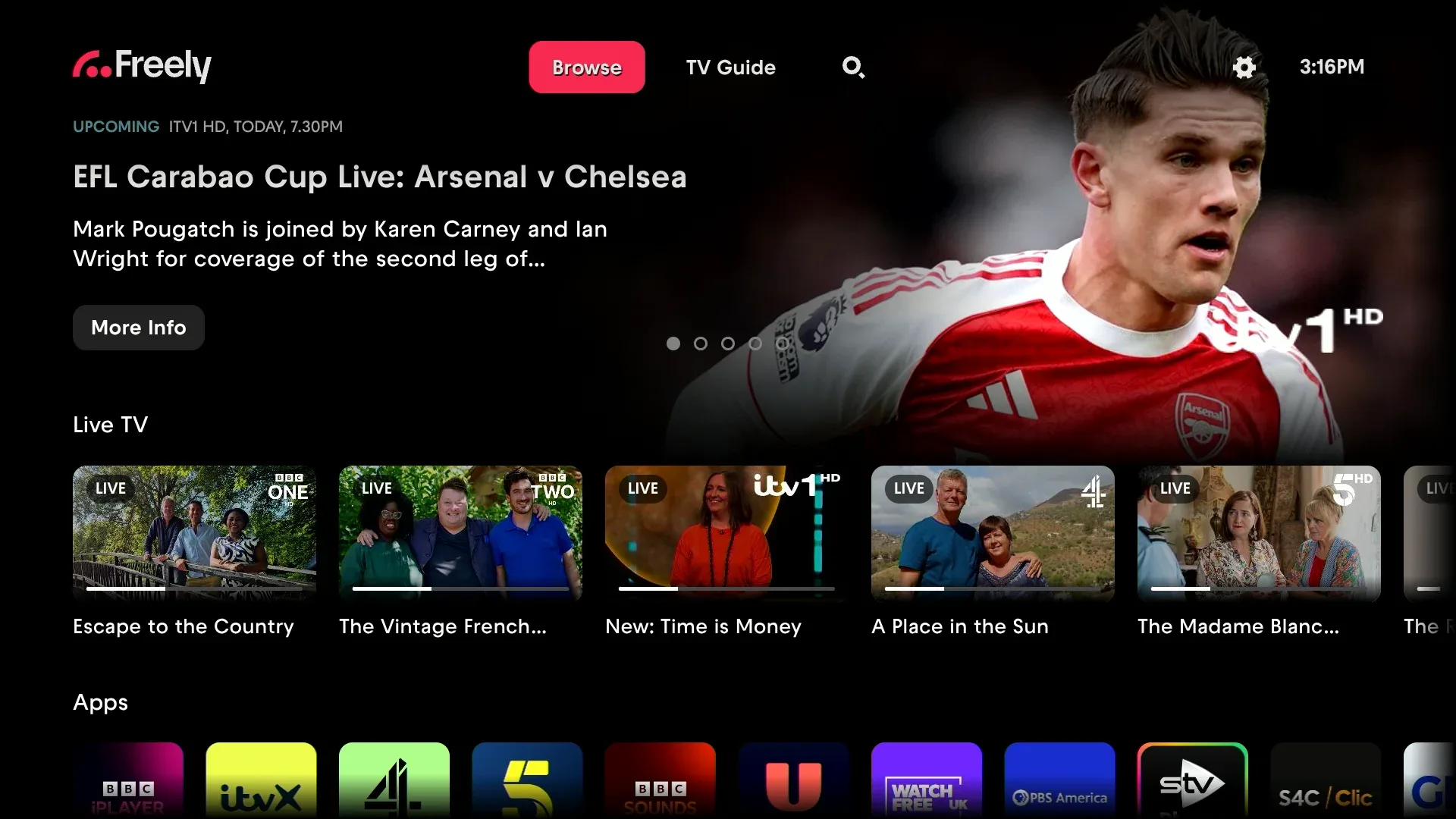
Your Aero remote has dedicated buttons to get you straight into Freely, and once you’re there, getting around is simple.
Accessing Freely
Your remote has two buttons for direct access:
- Freely button: Opens the Browse section, showing what’s on now and on-demand picks from the UK’s major broadcasters.
- Guide button: Opens the TV Guide with all live channels, so you can see what’s on now and browse up to 7 days ahead.
The Four Tabs
Freely is organised into four tabs along the top of the screen:
- Browse: Live TV carousel, on-demand recommendations, and content organised by channel and genre. This is also where you’ll find My List.
- TV Guide: View what’s on now and browse the schedule up to 7 days ahead.
- Search: Find on-demand programmes from the UK’s major broadcasters.
- Settings: Manage your Freely preferences, including accessibility options.
Use the left and right buttons on your remote to move between tabs.
Quick Navigation Tips
These shortcuts make it easy to get back to what you were watching:
- Press Back repeatedly to step back through menu levels one at a time.
- Hold Back briefly to exit any Freely menu and return straight to live TV.
These work from anywhere in Freely, so you’re never more than a moment away from your programme.