
Freely TV Guide
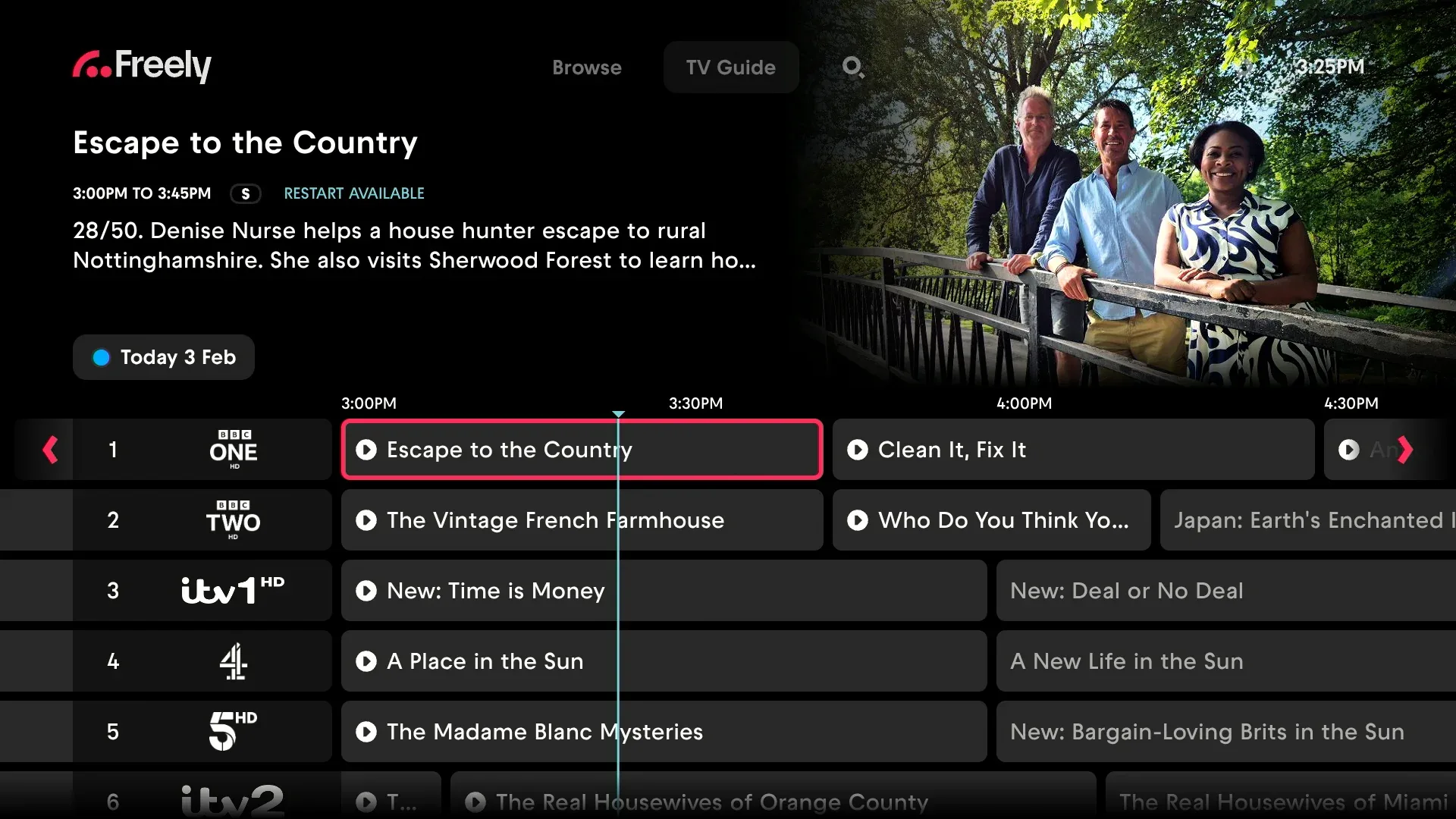
The TV Guide shows you what’s on across all Freely channels, with the ability to browse up to 7 days ahead. You can also look back to find programmes you might have missed.
Opening the TV Guide
Press the Guide button on your remote to go straight to the TV Guide. You can also reach it from the TV Guide tab at the top of the Freely screen.
Browsing the Schedule
Use the arrow buttons on your remote to move around:
- Up/Down: Move between channels
- Left/Right: Move through time slots
The guide shows 7 days of upcoming programmes, so you can plan your viewing ahead of time.
Jumping to a Specific Date
To quickly jump to a different day:
- Highlight today’s date at the top of the guide.
- Press OK to open the date picker.
- Select the day you want (up to 7 days back or 7 days ahead).
You can also press the Blue button on your remote to open the date picker directly from anywhere in the guide.
Getting More Programme Information
When you’ve highlighted a programme, press the Info button on your remote to see:
- A fuller description of the programme
- More episodes available on demand (handy if you’ve missed recent episodes)
- The option to add it to My List
My List
When you find something you’d like to watch later, you can add it to My List. This makes it easy to keep track of programmes you’re interested in.
To find My List, head to the Browse tab and scroll down – you’ll see your saved programmes waiting for you. Note that My List is separate from the TiVo Watchlist – items saved in Freely stay in My List, and items saved on the TiVo Home screen stay in the Watchlist.