Knowledge Base
Using Your Aero Remote
Remote Control Buttons
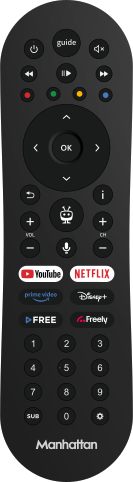
Learn what each button on your Aero remote does.
Guide to the Aero Remote's Buttons
Learn what each button on your Aero remote does.
| Button | Description |
|---|---|
| Standby on/off | |
| Open the TV Guide | |
| Mute volume. Hold for Accessibility Shortcuts | |
| Rewind | |
| Play/Pause | |
| Fast Forward | |
| Colour Buttons: Perform the on-screen function | |
| Navigate through menus and confirm selection | |
| Go back a step in menus. Hold to return to live TV or exit apps | |
| Show more information about a highlighted programme | |
| Turn volume up/down | |
| Open the TiVo Home Screen | |
| Change channel when watching TV | |
| Press and hold to use voice commands | |
| Open YouTube | |
| Open Netflix | |
| Open Prime Video | |
| Open Disney+ | |
| Open TiVo+ FREE | |
| Open Freely | |
| … | Enter a channel number (works from the TiVo Home Screen) |
| Toggle subtitles | |
| Open the Settings menu |
Using Voice
The Voice button lets you search and control your Aero hands-free. Press and hold the button while speaking, then release when finished. Speak naturally and conversationally – TiVo understands natural language. After your first command, you can press and hold again to add more search terms and refine your results without starting over.
Things to Try
Search: “Show me action movies” or “Films like Paddington”
Refine searches: “Show me James Bond movies” then “Just the ones with Daniel Craig”
Navigate: “Go to Settings” or “Open iPlayer”
Control: “Volume up”, “Mute on”, or “Set volume to 50”
Playback: “Fast forward 5 minutes” or “Pause”
Pairing Your Remote
Your remote must be paired for voice to work. You’ll be prompted to pair during initial setup, or you can pair later by going to Settings → Devices → Remote Control.
Voice commands work best on the Home screen and currently have limited support in apps.