Knowledge Base
Using Freely
Navigating Freely
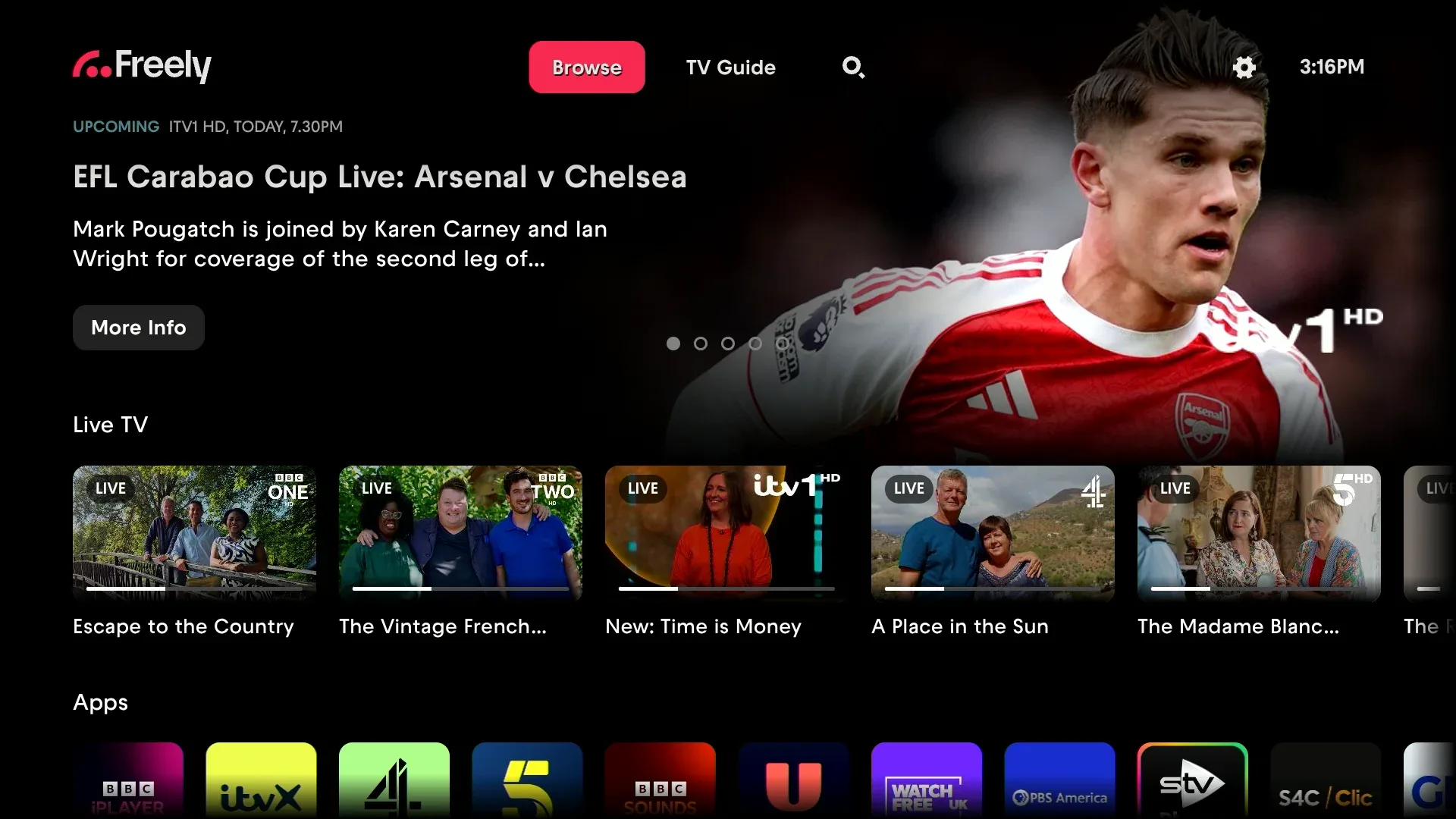
Your Aero remote has dedicated buttons to get you straight into Freely, and once you’re there, getting around is simple.
Accessing Freely
Your remote has two buttons for direct access:
- Freely button: Opens the Browse section, showing what’s on now and on-demand picks from the UK’s major broadcasters.
- Guide button: Opens the TV Guide with all live channels, so you can see what’s on now and browse up to 7 days ahead.
The Four Tabs
Freely is organised into four tabs along the top of the screen:
- Browse: Live TV carousel, on-demand recommendations, and content organised by channel and genre. This is also where you’ll find My List.
- TV Guide: View what’s on now and browse the schedule up to 7 days ahead.
- Search: Find shows across all Freely content.
- Settings: Manage your Freely preferences, including accessibility options.
Use the left and right buttons on your remote to move between tabs.
Quick Navigation Tips
These shortcuts make it easy to get back to what you were watching:
- Press Back repeatedly to step back through menu levels one at a time.
- Hold Back briefly to exit any Freely menu and return straight to live TV.
These work from anywhere in Freely, so you’re never more than a moment away from your programme.
Freely TV Guide
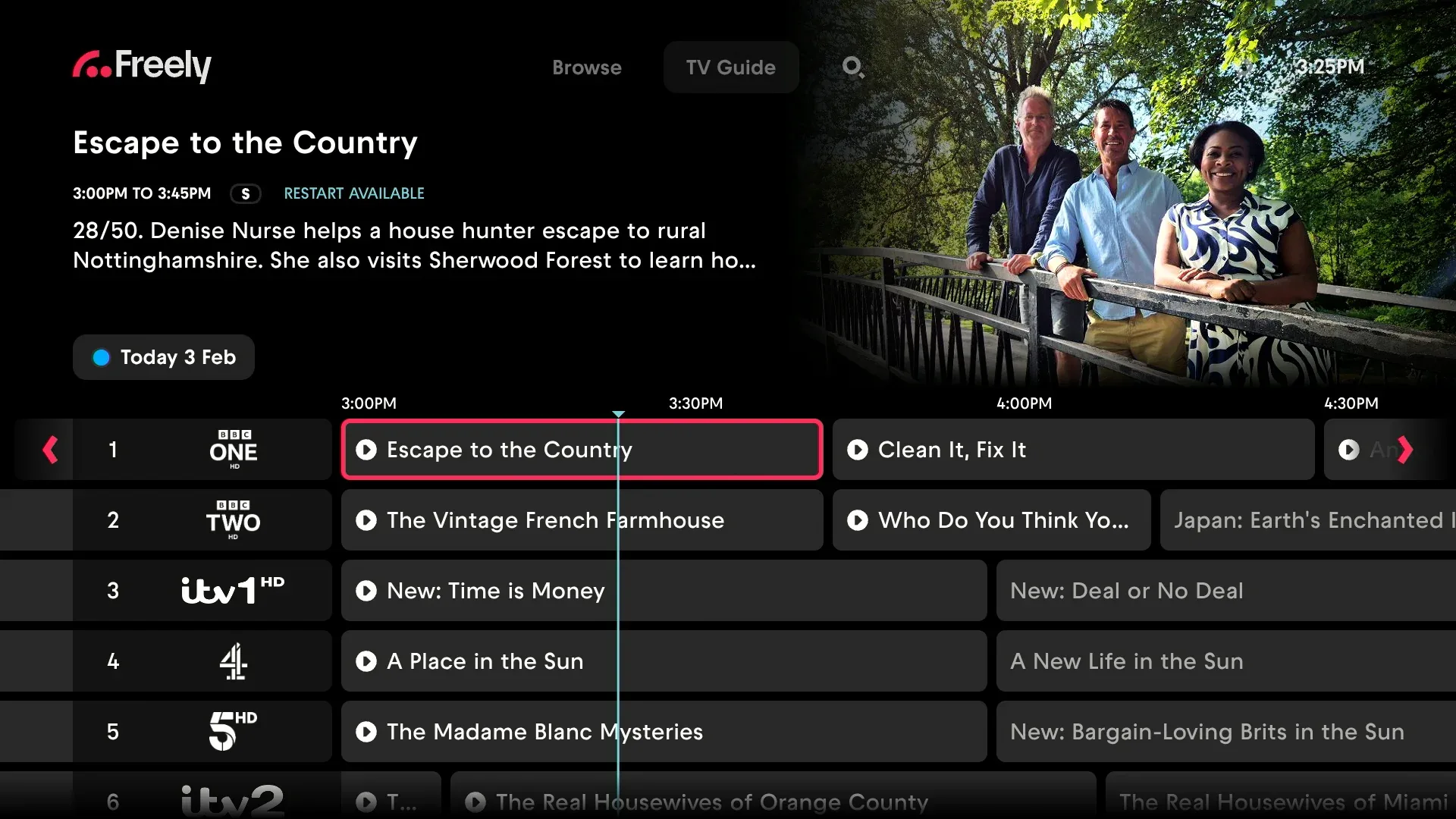
The TV Guide shows you what’s on across all Freely channels, with the ability to browse up to 7 days ahead. You can also look back to find programmes you might have missed.
Opening the TV Guide
Press the Guide button on your remote to go straight to the TV Guide. You can also reach it from the TV Guide tab at the top of the Freely screen.
Browsing the Schedule
Use the arrow buttons on your remote to move around:
- Up/Down: Move between channels
- Left/Right: Move through time slots
The guide shows 7 days of upcoming programmes, so you can plan your viewing ahead of time.
Jumping to a Specific Date
To quickly jump to a different day:
- Highlight today’s date at the top of the guide.
- Press OK to open the date picker.
- Select the day you want (up to 7 days back or 7 days ahead).
You can also press the Blue button on your remote to open the date picker directly from anywhere in the guide.
Getting More Programme Information
When you’ve highlighted a programme, press the Info button on your remote to see:
- A fuller description of the programme
- More episodes available on demand (handy if you’ve missed recent episodes)
- The option to add it to My List
My List
When you find something you’d like to watch later, you can add it to My List. This makes it easy to keep track of programmes you’re interested in.
To find My List, head to the Browse tab and scroll down – you’ll see your saved programmes waiting for you. Note that My List is separate from the TiVo Watchlist – items saved in Freely stay in My List, and items saved on the TiVo Home screen stay in the Watchlist.
Watching Freely Live TV
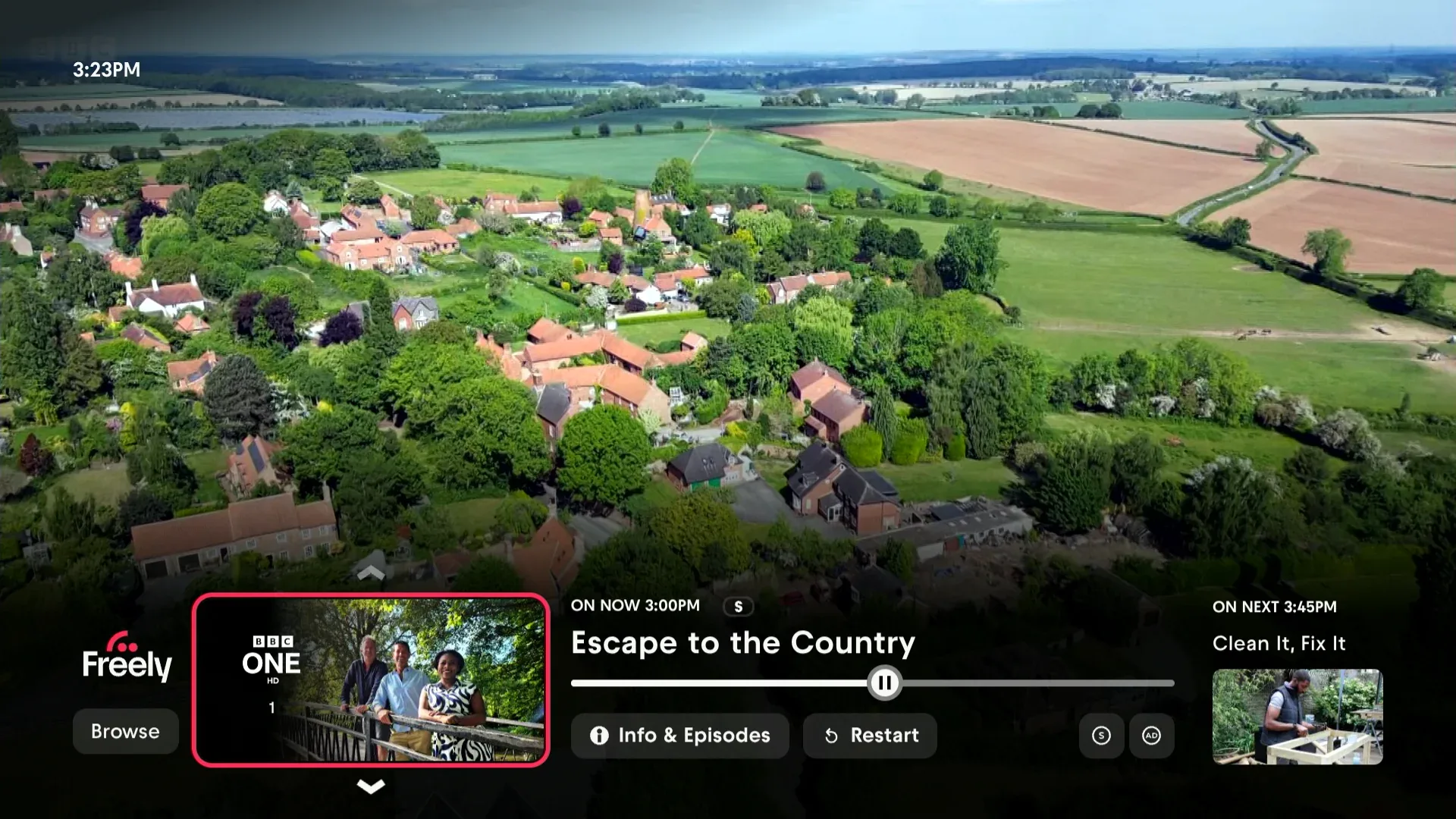
When you’re watching live TV, your Aero gives you quick access to programme information, channel changes, and more through the MiniGuide.
The MiniGuide
While watching live TV, press OK or any direction on the D‑pad to open the MiniGuide. This handy overlay shows you:
- What’s on now and what’s coming up next
- Programme information and description
- More episodes available on demand
- Quick toggles for Subtitles (S) and Audio Description (AD)
The MiniGuide disappears after a few seconds, or you can press Back to close it.
Changing Channels
There are several ways to switch channels:
Using the channel buttons: Press P+ (channel up) or P- (channel down) to move through channels one at a time.
Entering a channel number: Use the number buttons on your remote to type a channel number directly. After a moment, your Aero will tune to that channel. This also works from the TiVo Home screen – so you don’t need to be watching live TV first.
From the MiniGuide: When the MiniGuide is open, press left or right to browse other channels, then press OK to switch.
Restarting Programmes
Some programmes can be restarted from the beginning, even if you’ve tuned in partway through. When this is available, you’ll see the option in the MiniGuide.
To restart a programme:
- Press OK to open the MiniGuide.
- Look for the restart option.
- Select it to go back to the beginning.
Not all programmes support restart – it depends on the broadcaster making it available.
Freely Accessibility
Freely includes a range of accessibility features to help everyone enjoy TV. You can find programmes with subtitles, audio description, and sign language, and customise the display to suit your needs.
Finding Accessible Programmes
Look for these icons in the TV Guide and MiniGuide to identify programmes with accessibility features:
- S – Subtitled
- AD – Audio Described
- SL – Sign Language
These icons appear alongside programme information, making it easy to spot content that meets your needs.
Subtitles
Most programmes on Freely are subtitled. There are two ways to turn subtitles on or off:
Using the remote: Press the SUB button on your remote to toggle subtitles.
Using the MiniGuide: While watching live TV, press OK to open the MiniGuide, then look for the S symbol to turn subtitles on or off.
When using streaming apps like BBC iPlayer or ITVX, you’ll need to turn subtitles on within each app’s own player controls.
Changing the subtitle language: To switch the subtitle language (for example, to Welsh on S4C), go to Settings → Live TV → Subtitles → Primary Subtitle Language.
Subtitle size and font: These can’t currently be adjusted. Subtitle appearance on Freely channels is controlled by Freely at the platform level.
Audio Description
Audio description provides a spoken narration of what’s happening on screen during gaps in dialogue. It’s available on selected programmes.
Using the MiniGuide: Press OK to open the MiniGuide while watching, then look for the AD symbol to toggle audio description.
Using TiVo Settings: You can also turn audio description on or off via the TiVo Accessibility settings. See TiVo Accessibility for details.
The audio description setting is shared between Freely and TiVo, so changing it in one place updates it everywhere.
High Contrast Theme
The High Contrast theme makes Freely easier to navigate by using a bright yellow focus indicator and clear borders around tiles. This helps you track where you are on screen, regardless of background images.
To turn on High Contrast:
- Press the Freely button on your remote.
- Navigate right to the Settings tab (the gear icon).
- Select Accessibility.
- Navigate to High Contrast and press OK to turn it on.
The theme stays on until you turn it off, and works across all areas of Freely including Browse, TV Guide, MiniGuide, Search, and Settings.
The Accessible TV Guide
The Accessible TV Guide on Channel 555 is designed specifically for viewers with accessibility needs. It offers a simplified layout with optional text-to-speech and the ability to filter programmes by accessibility features.
Setting Up the Accessible TV Guide
- Go to Channel 555 on your Aero.
- On your first visit, you’ll be guided through setup options:
- Text-to-speech: Choose your preferred voice and speed for spoken navigation.
- Filter by Audio Description: Show only programmes with audio description.
- Filter by Subtitles: Show only programmes with subtitles.
- Filter by Sign Language: Show only programmes with sign language.
- Press right on your remote to save your preferences.
- You’ll then be asked about anonymous data collection. Press right to opt in, or down to opt out.
Using the Accessible TV Guide
Navigate the guide using your remote:
- Left/Right on the top row: Move between days (up to 7 days ahead).
- Left/Right on the channel row: Select different channels.
- Up/Down: Move through the programme list.
If text-to-speech is enabled, you’ll hear information about your current selection and guidance on how to navigate.