
Connecting Your Manhattan Box to a Satellite Dish
If you've got a Manhattan Freesat box - or you're thinking of getting one - and you're wondering how to connect it to your satellite dish, or whether your existing cabling will work, you're in the right place.
The good news is that most UK homes that have had Sky already have compatible satellite cabling. Your Manhattan box will automatically detect what's connected during setup and tell you what your options are. That said, it still helps to understand the basics - so let's walk through it.
Want a Professional to Handle It?
You don't have to figure any of this out yourself. If you'd rather have a professional check your setup and connect your Manhattan box, the best place to find a qualified satellite installer is:
It's an independent directory of installers registered under the RDI (Registered Digital Installation) scheme. They can assess your existing cabling, connect your box, and make sure everything's working properly. It's especially worth considering if you're not sure what cabling you have, if you need a new dish, or if you're in a flat with a shared dish system.
Please note that Manhattan TV is not affiliated with getmeviewing.org.uk and is not responsible for the work carried out by any installer. We recommend them as a useful independent resource for finding qualified professionals.
Which Manhattan Box Do You Have?
We currently have two Freesat models, and they have different dish requirements.
Manhattan S4•R - Our Freesat recorder. It has two satellite inputs (SAT IN 1 and SAT IN 2) and is designed to record programmes. It's built to make the most of your setup - whether that's two cables from a dish or a single SCR feed from a shared system. More on that below.
Manhattan SX - Our Freesat HD box. It has one satellite input and is designed for watching live Freesat TV. It needs a single standard satellite feed, and won't work with wideband cables. If your dish was set up for Sky Q using wideband feeds, the SX won't be able to tune in. It needs a standard (sometimes called "universal" or "legacy") feed.
What You Probably Already Have
If your home has had Sky at some point, there will be satellite cables running from the dish into one or more rooms. Here's what's most common:
Two cables into the room - This is the standard setup for any room that had Sky+ or Sky+ HD. It's also common with Sky Q, though Sky Q uses a different type of signal (more on that in a moment). Two cables is the ideal starting point for the S4•R.
One cable into the room - Common in secondary rooms that had a basic Sky box, in some older installations, and in flats with shared dish systems. This is all the SX needs. The S4•R can work with one cable too - and if it's an SCR (Unicable) feed, you'll get full recording capability. A single standard feed is more limited, though, so it's worth knowing which type you have.
A shared dish system (flats and apartments) - If you live in a building with a shared satellite dish, the signal is distributed through a multiswitch, typically in a communal area. You might have two standard cables, one standard cable, or a single SCR (Unicable) cable coming into your flat. The type matters, and if you're unsure, your building manager or an installer can help.
A Quick Word on Signal Types
Not all satellite cables carry the same type of signal. There are three types you might encounter:
- Standard (Universal) - The most common type in the UK. Used by Sky+, Sky+ HD, older Freesat boxes, and many multiswitch installations. Works with both the S4•R and the SX.
- Wideband - Used by Sky Q. Carries a wider range of frequencies. Works with the S4•R but not the SX.
- SCR (Unicable) - Used in some shared dish systems, especially those upgraded for Sky Q. Sends multiple signals down a single cable. Works with the S4•R. The SX does support SCR in rare cases, but this requires manual configuration and is not a typical setup.
You don't need to identify your signal type yourself - the S4•R detects it automatically during setup. But it's useful to know these exist, especially if you're troubleshooting.
What Your Cables and Sockets Look Like
Before we get into plugging things in, it's worth knowing what you're actually looking for. Satellite cabling in UK homes shows up in a few different forms, and the first hurdle is often just recognising it.
Wall Sockets or Loose Cables?
If your room was wired up by a professional, your satellite feeds probably terminate in a wall plate rather than loose cables dangling out of a hole. That's completely normal - in fact, it's the tidier option.
A satellite wall plate will have one or two round silver sockets with a small hole in the middle and a screw thread around the outside. These are F-connector sockets, and they're what satellite feeds use.
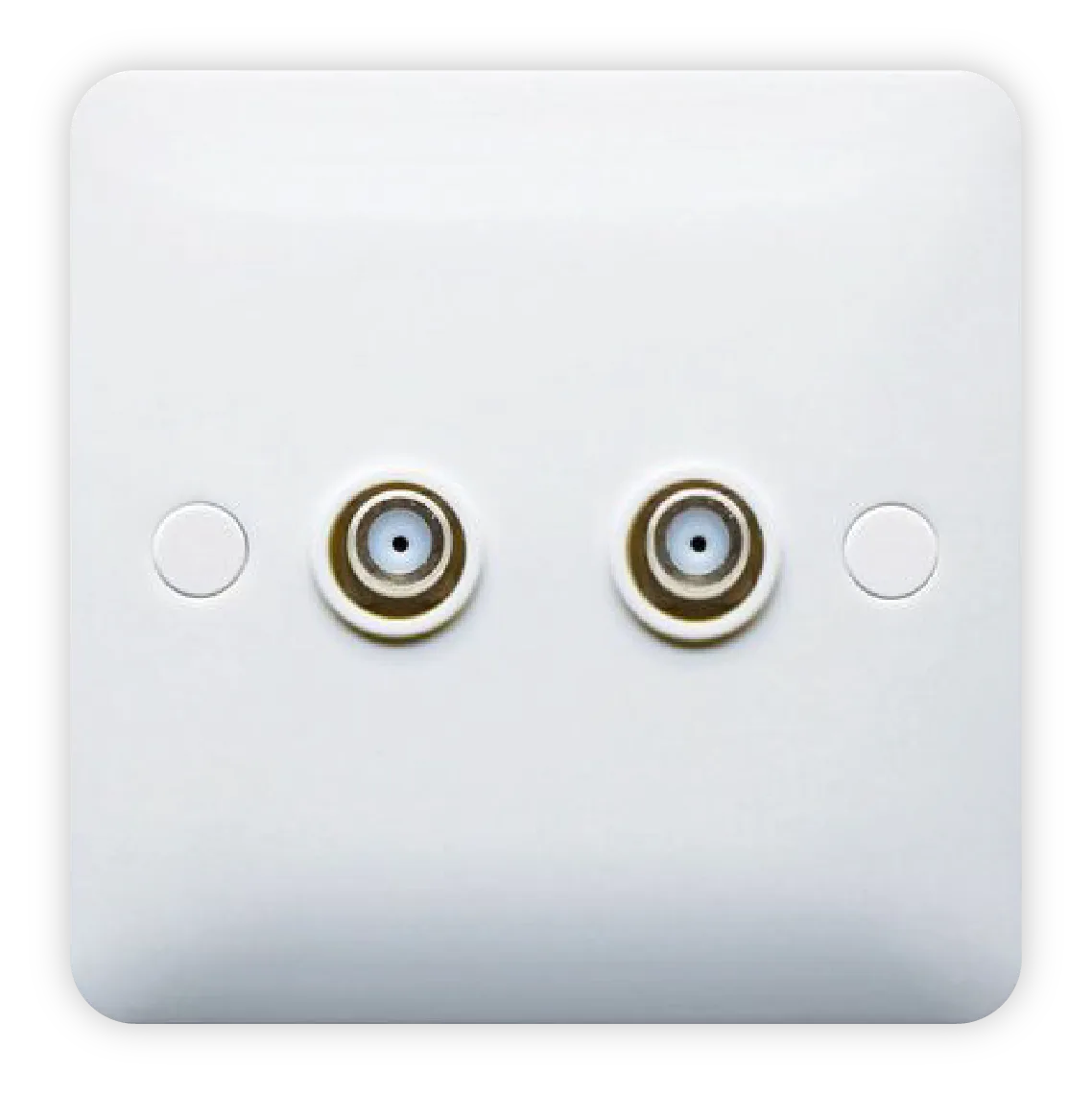
A twin satellite wall plate - two F-connector sockets, ready for the S4•R.
Some wall plates combine satellite sockets with TV and radio sockets all on one faceplate. This is very common in homes that were set up for Sky, and usually means the installer ran cables for everything at once.
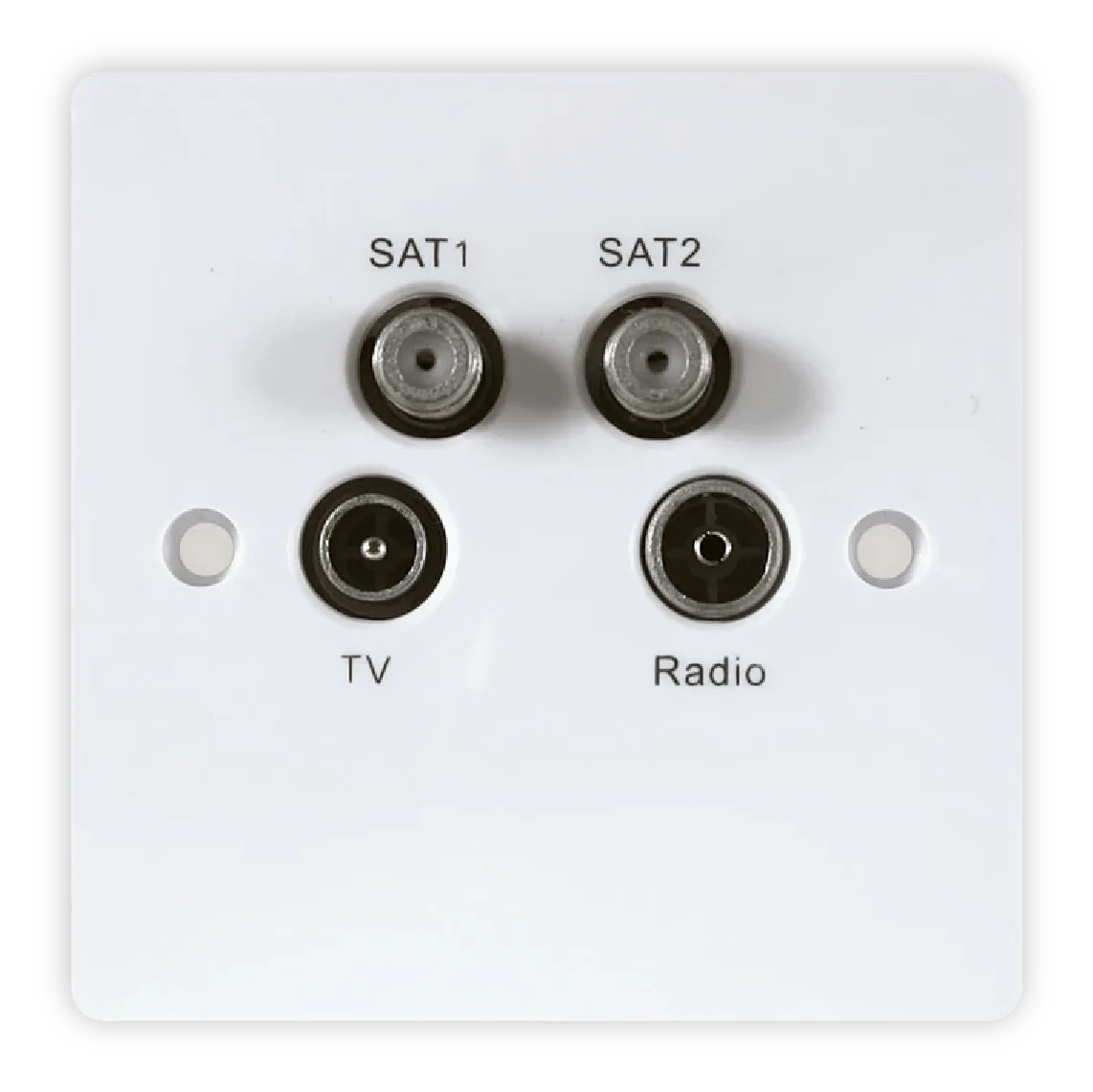
A quad outlet like this is common in Sky-era installations. The two sockets labelled SAT1 and SAT2 are what you'll connect to the S4•R.
Don't Confuse It With a TV Aerial Socket
Here's a really common mix-up. A TV aerial socket looks a bit similar at a glance, but it's for your terrestrial (Freeview) aerial, not a satellite dish. It has a single round hole with no screw thread - the cable just pushes in.
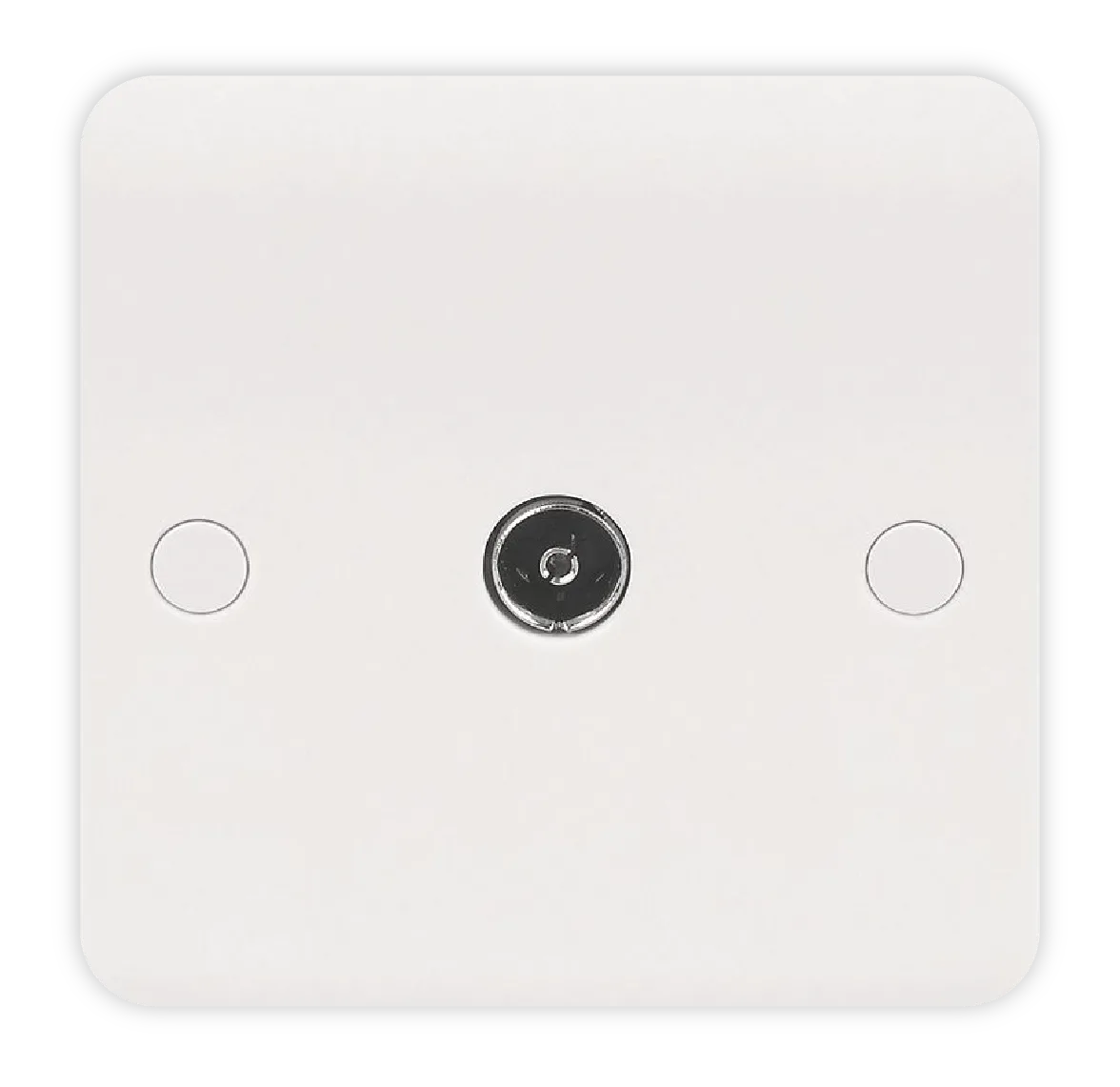
This is a TV aerial socket, NOT a satellite socket. No screw thread, push-fit only.
If the only socket in your room looks like this, you don't have a satellite feed running to that room. You'll either need to use a different room that does have one, or get an installer to run a satellite cable for you.
About F-Connectors and Flyleads
Satellite cables use F-connectors - a screw-on metal fitting with a thin copper pin in the middle.
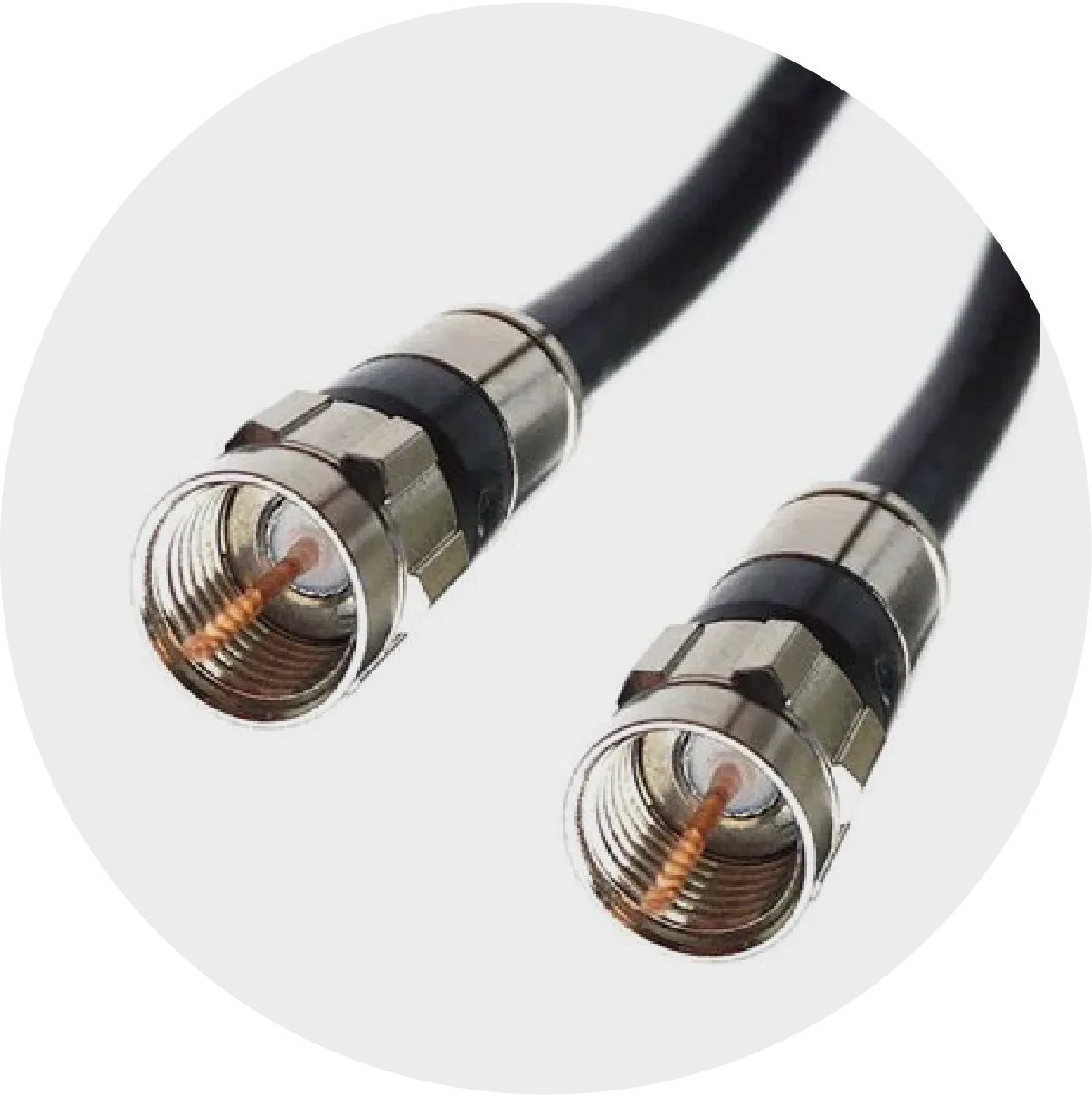
A satellite flylead. The screw-on F-connectors are what you'll attach to your S4•R's SAT IN sockets.
If your cables come straight out of the wall, the F-connectors will already be attached and you just screw them onto your box. If your feeds come through a wall plate, you'll need a short cable with F-connectors on both ends - called a flylead - to go from the wall plate to your box. Most electrical shops, supermarkets, and online retailers stock them for a few pounds. Get one that's long enough to reach comfortably without being stretched.
One important tip: F-connectors need to be finger-tight. Screw them on by hand until they're snug - not loose, but not forced with pliers either. A loose F-connector is the single most common cause of "poor signal" warnings during setup, so it's worth taking an extra second to make sure each one is properly tightened.
Connecting Your S4•R
The S4•R has two satellite inputs and is built to record. How much recording capability you get depends on what's connected - and it's not just about cable count.
Two Cables - The Standard Setup
Connect both cables to SAT IN 1 and SAT IN 2. The S4•R will detect the signal type and configure itself:
- Two standard (Universal) feeds: 2-tuner operation - watch one channel while recording another, or record 2 channels at once.
- Two wideband feeds: 4-tuner operation - record up to 4 channels simultaneously.
If you have two cables on the wall, plug them both in and run the setup - you're likely all set.
One SCR (Unicable) Cable - Full Capability
If you're in a flat or apartment with a shared dish system, you may have a single SCR (Unicable) cable. This is a great setup for the S4•R - it can achieve up to 4-tuner operation from that one cable. The box auto-detects the available SCR user bands during setup and tells you how many channels you can record at once.
In some buildings that were upgraded from Sky+ to Sky Q, you might find one old standard cable alongside a newer SCR cable. If both are connected, the S4•R will use the SCR feed for full capability.
One Standard Cable - It Works, but You'll Be Limited
If you only have one standard (Universal) cable - common in secondary rooms or older installations - the S4•R will still work, but with a big compromise. You're limited to 1-tuner operation: you can watch live TV or record, but you can't do both at the same time. You won't be able to watch one channel while recording another.
For a recorder, that's a significant limitation. If you're in this situation, it's worth getting a second cable run from your dish. An installer can usually do this fairly quickly and it makes a big difference to how useful the S4•R is day to day.
Sky Hybrid LNBs
Many Sky-branded dishes use a "hybrid" LNB with both standard and wideband outputs. If you connect the two wideband outputs to your S4•R, you'll get 4-tuner capability. If you connect the standard outputs, you'll get 1 or 2-tuner capability depending on how many cables you use.
One thing to watch out for: some older Sky "Smart" hybrid LNBs (like the EL010 model) only work in standard mode with non-Sky boxes. Their wideband mode requires proprietary Sky signalling that the S4•R can't use. You'll still get Freesat TV through the standard outputs - just with 1 or 2-tuner operation rather than 4. If you're not sure which type of LNB your dish has, an installer can check.
Connecting Your SX
The SX is simpler - one satellite input, no recording, just live Freesat HD TV. But there's one important thing to know.
The SX Needs a Standard (Universal) Signal
The SX works with standard (Universal) satellite feeds only. This is the most common type in the UK, so most people will be fine. Just plug one cable into the satellite input and you're done.
Wideband Feeds Won't Work with the SX
If your dish was installed for Sky Q and only has wideband outputs, the SX won't be able to pick up a signal from them. This is the most common issue people hit.
If your dish has a hybrid LNB (many Sky dishes do), it may have both standard and wideband outputs - use one of the standard outputs for your SX. If you're not sure which is which, the outputs should be labelled on the LNB itself, or an installer can identify them for you.
If your dish only has wideband outputs and no standard ones, you'll need an installer to either swap the LNB for a compatible one or add a standard output.
S4·R
| Your Setup | Cables to Connect | What You Get |
|---|---|---|
| Standard / Universal — two cables | 2 | Record up to 2 channels at once |
| Wideband — two cables | 2 | Record up to 4 channels at once |
| SCR / Unicable — one cable | 1 | Record up to 4 channels at once* |
| Standard / Universal — one cable | 1 | Record 1 channel at a time only |
*SCR recording capability depends on available user bands. The S4·R detects these automatically during setup.
SX
| Your Setup | Cables to Connect | What You Get |
|---|---|---|
| Standard / Universal — one cable | 1 | Live Freesat HD TV |
| Wideband | — | Not compatible |
Your Manhattan Box Guides You Through Setup
Whatever you connect, your Manhattan box checks the signal automatically when you first set it up. It'll show you a clear summary of what it's found - the signal type, what you can do, and whether there are any issues.
If something's not quite right, it gives you clear next steps. And even if you can't get your satellite signal sorted straight away, you can connect to Wi-Fi and use apps and on-demand content while you arrange for help.
A Note About Manual Signal Configuration
In the rare case of unusual multiswitch configurations with non-standard SCR set-ups, automatic detection may not get it right. The SX and S4•R both include a manual configuration screen where you can set SCR user bands and frequencies yourself. However, this is advanced work, so if you're unsure, it might be best to call a professional.
Still Need Help?
The simplest option is always to get a professional to take a look. Find a qualified installer near you at getmeviewing.org.uk.
For questions about your Manhattan box, visit manhattan-tv.com/support.